summary
This is a help page for setting up Connection Configuration using Rtoaster insight+ with Google Account integration.
Prerequisite.
Connection Configuration for Rtoaster insight+ with Google Account integration is used to retrieve data in Google BigQuery for Rtoaster insight+, which is built on the Tokyo Region (asia-northeast1) of Google Cloud Platform (hereinafter referred to as GCP). This information is used to retrieve data.
BigQuery for Rtoaster insight+ uses only the following GCP projects.
| Project Name | role |
|---|---|
| rtoaster-insight | It will be linked when you link your Google account. |
| rtoaster-data | The Rtoaster table on the Rtoaster insight+ screen contains the corresponding data. |
| bp-pica-prd | The user-defined table on the Rtoaster insight+ screen contains the corresponding data. |
In addition, data is retrieved from Google BigQuery via Google Cloud Storage (henceforth referred to as GCS).
Therefore, it is necessary to grant GCS storage administrator privileges to the Google account linked through Google Account Linkage.
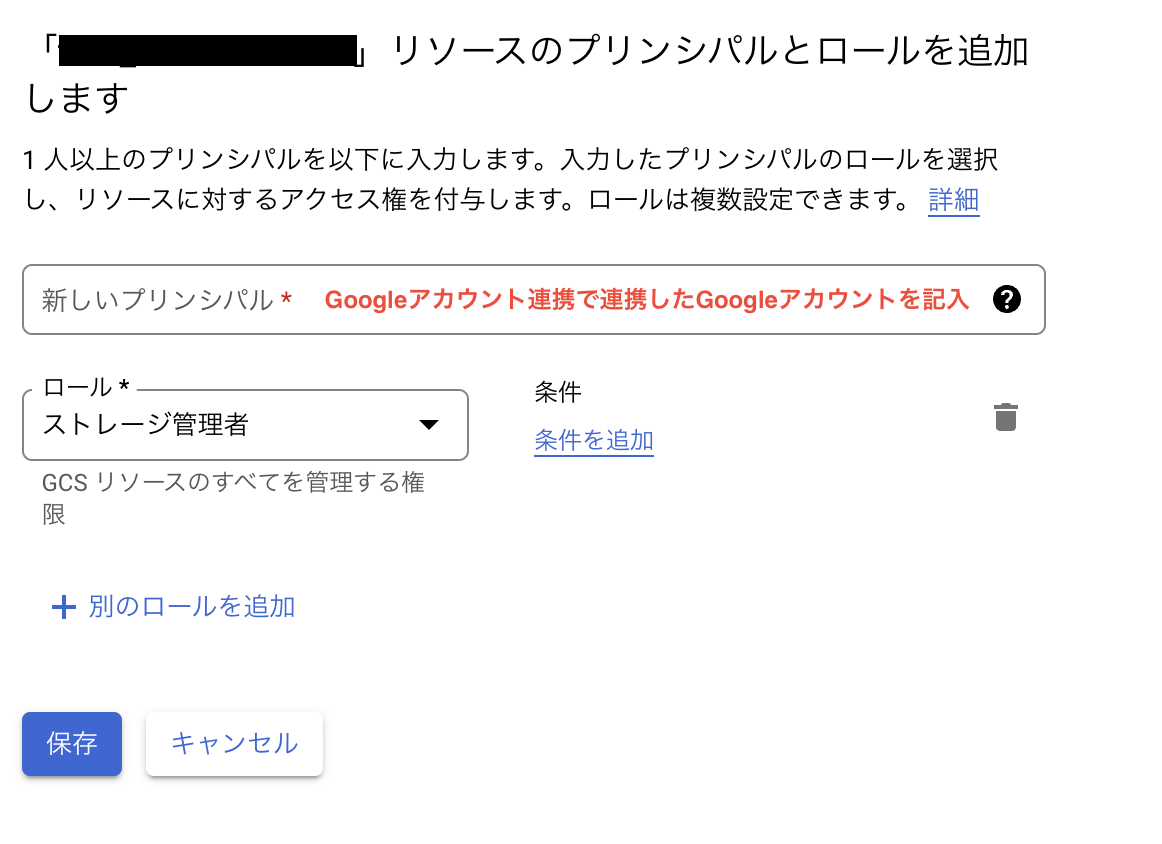 "500" width=""}
advance preparation
Operate the Rtoaster insight+ administration screen with an account that has administrative rights to Rtoaster insight+.
- From the sidebar of the Rtoaster insight+ administration page, open Options → Rtoaster insight+ with Google Account integration.
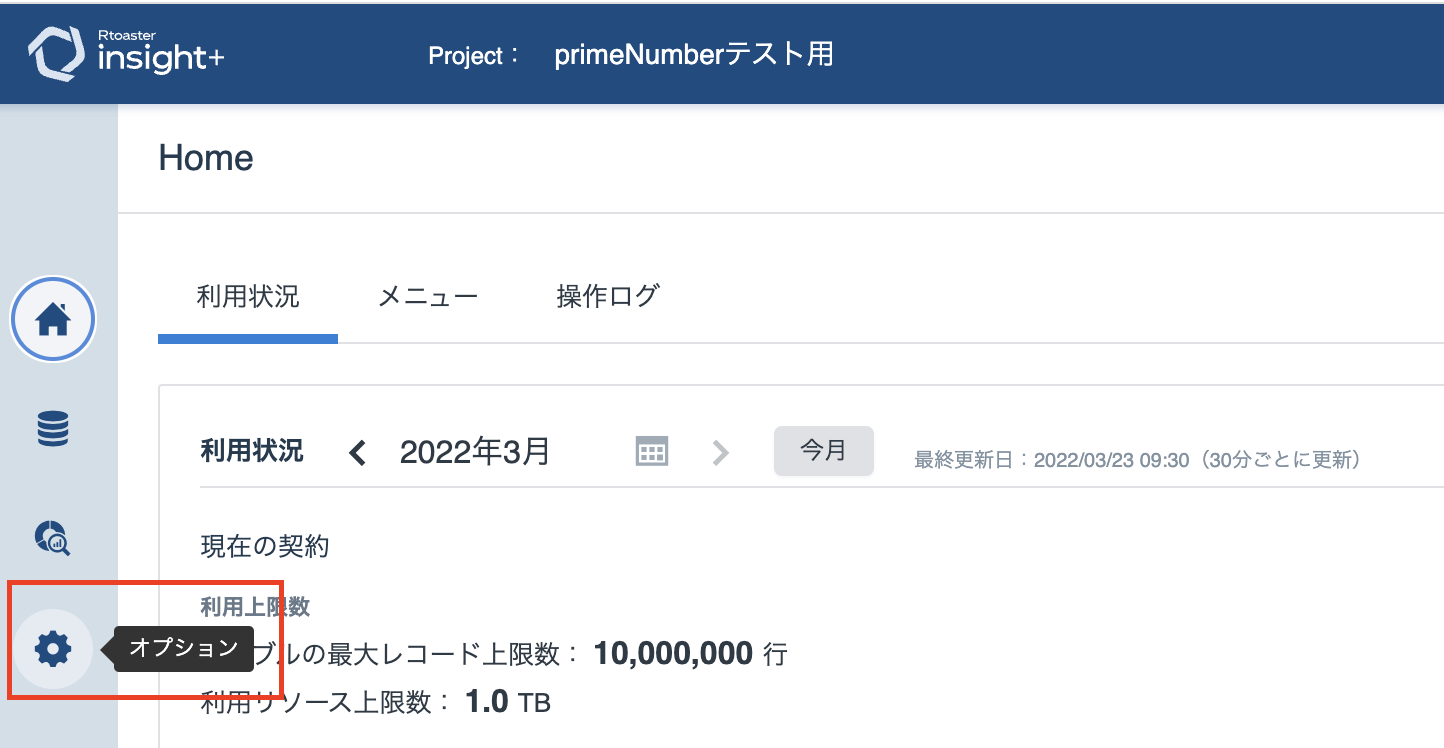 "400" width=""}
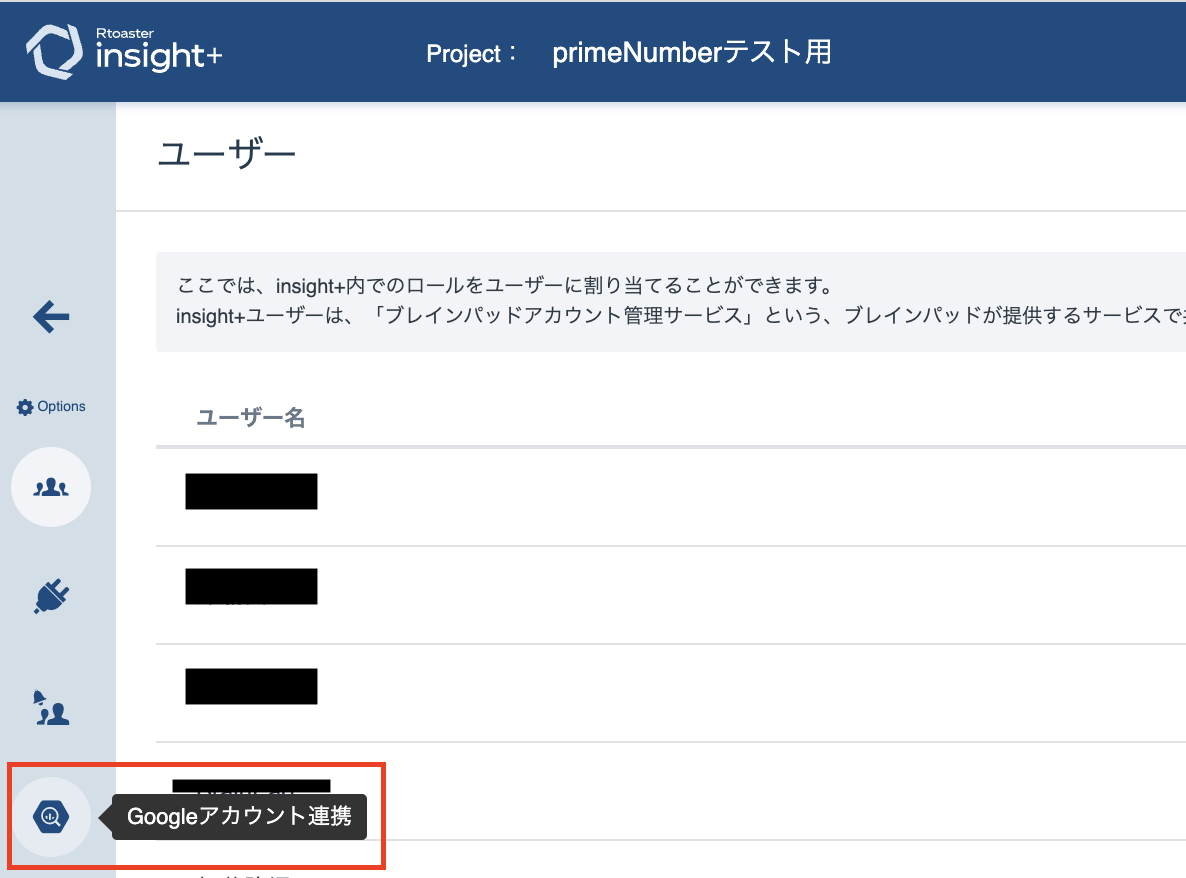 "500" width=""}
- Please set up a Google Account for ETL Configuration by clicking on the "Add Account" link in the upper left corner of the screen.
*GCP service accounts cannot be set up.
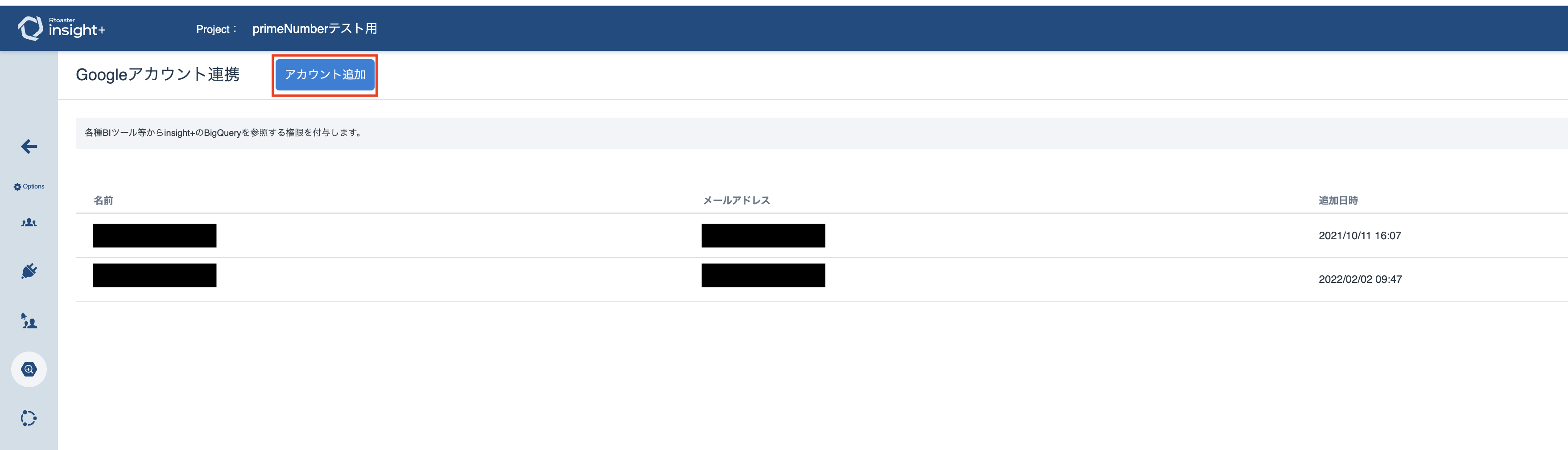 "350" width=""}
 "200" width=""}
After a while, the following GCP projects will be available for browsing when you open the GCP console with the Google account you have set up.
Please check the following URL after logging in to GCP.
https://console.cloud.google.com/bigquery?project=rtoaster-insight
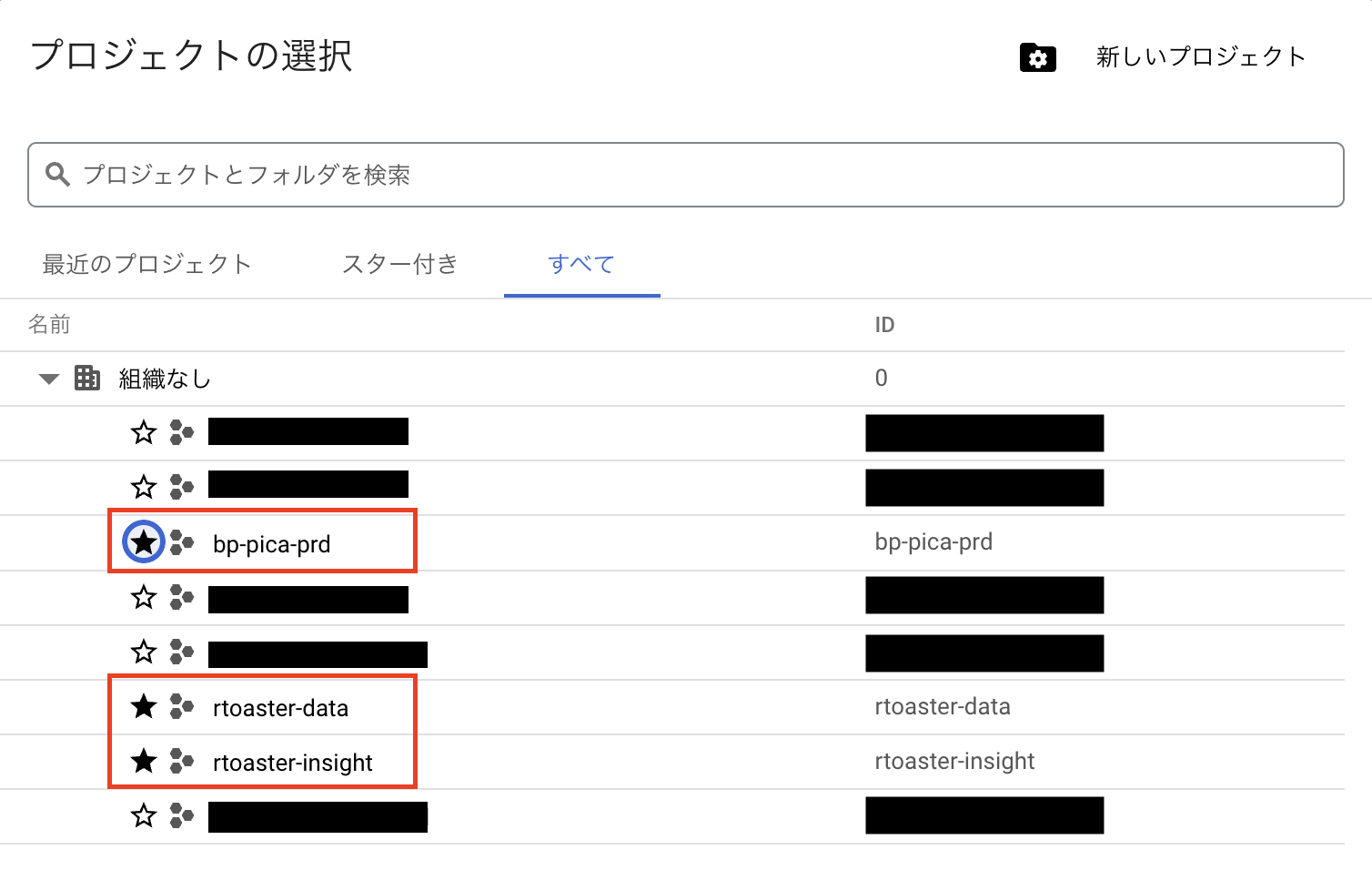 "400" width=""}
entry
| item name | indispensable | Contents |
|---|---|---|
| Name | Yes | Enter the name of the Connection Configuration to be used inside TROCCO. |
| memo | No | Enter a note of Connection Configuration to be used inside TROCCO. |
| Google Account | Yes | Please authenticate your Google account and specify the account with which you have linked your Google account on the Rtoaster insight+ with Google Account integration screen. |
Google Account Authentication
-
Specify the account with which you have linked your Google account on the Rtoaster insight+ with Google Account integration screen through Google Account verification.
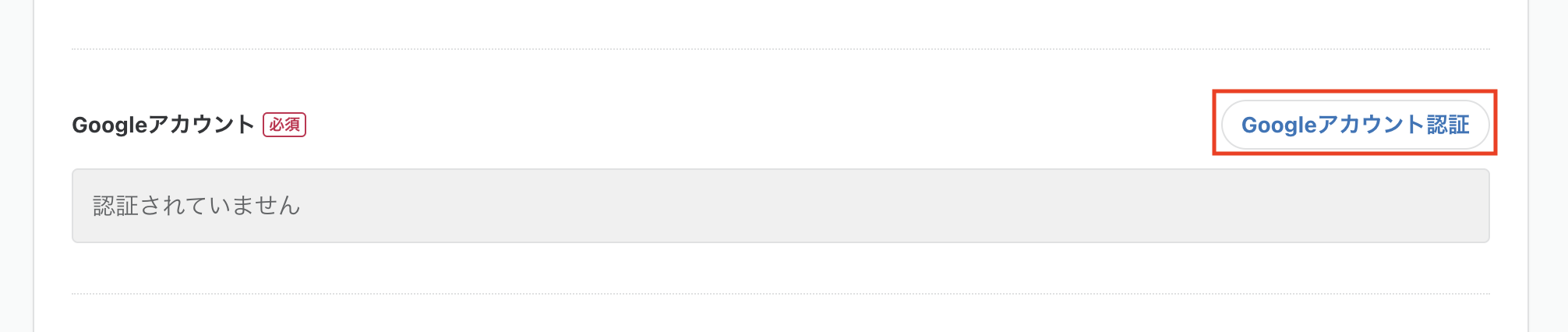 "200" width=""}
 -
TROCCO will ask for additional access to your Google account, please allow it.
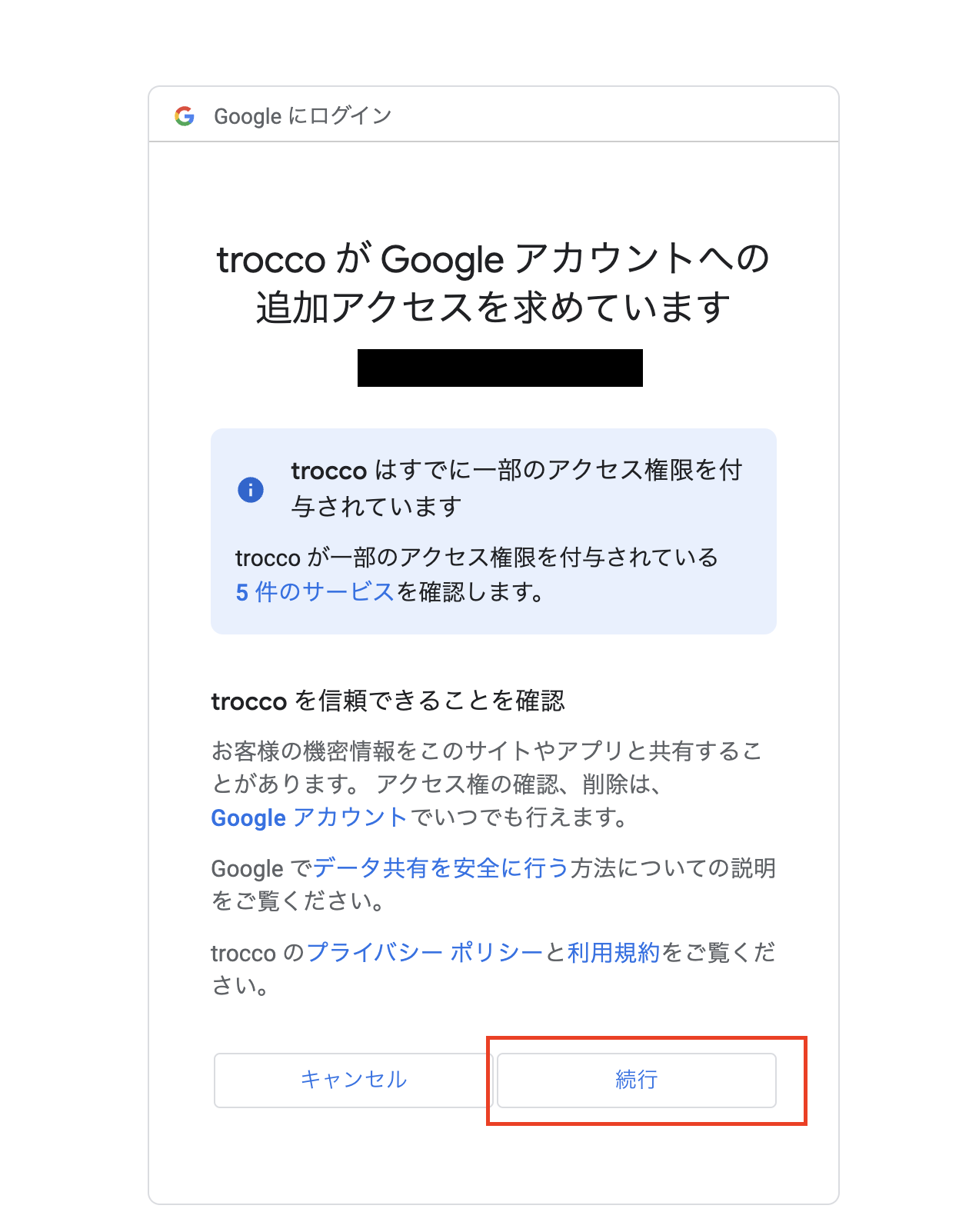 "600" width=""}